
Interactive Brokers gives you almost every market in one account: US and international stocks, options, futures, and forex. That breadth is great for trading and rough on journaling. One busy week of scaling in, rolling options, and flipping a futures position can leave you with hundreds of executions, and copying them into a spreadsheet is the first habit that slips.
An Interactive Brokers trading journal with auto sync removes that step. Your IBKR fills arrive in your journal every hour, already grouped into trades with commissions and fees, so your review time goes to the questions that matter: which setups pay, when you trade badly, and where your edge actually is.
This guide shows how IBKR auto sync works in TradeReview, how to set it up once in about ten minutes, what gets imported, and how to fix the handful of errors you might see.
Why journal your IBKR trades automatically
IBKR’s own statements are built for accounting, not for improving as a trader. They list executions, not decisions. A single trade that you scaled into three times and out of twice shows up as five rows, and nothing in the statement tells you which setup it was, how you felt, or whether you followed your plan.
A journal turns those rows into trades you can learn from:
- Executions grouped into trades. Partial fills, scale-ins, and scale-outs become one trade with an average entry, average exit, and net P&L.
- Costs included. IBKR commissions and transaction taxes are attached to each execution, so your win rate and profit factor reflect what you actually kept.
- Context you add. Tags, strategies, notes, and chart screenshots sit on the trade itself, and they survive every future sync.
- Analytics across markets. Compare your stock swing trades with your futures scalps in the same reports and calendar.
The catch with any journal is consistency. If logging depends on you exporting a file every Friday, it will eventually stop. That is the case for auto sync: the data shows up whether or not you remember. If you are still deciding which journal to use, our comparison of the best trading journal apps covers sync support in detail.
How IBKR auto sync works
Interactive Brokers does not offer a simple “log in with IBKR” button for third-party journals. Instead, it provides the Flex Web Service, an official, read-only way to download reports you define yourself. TradeReview uses it like this:
- You create two Flex Queries in IBKR Client Portal. These are saved report definitions:
- An Activity Flex Query with your trade history for up to the last 365 days. IBKR finalizes this data after the end of each trading day, with final commissions and FX rates.
- A Trade Confirmation Flex Query with today’s executions. IBKR makes these available within minutes of each fill.
- You generate a Flex Web Service token. It lets an application download those two reports and nothing else.
- TradeReview runs both queries every hour, merges them, and updates your journal. Same-day fills from the Trade Confirmation report appear first. Once IBKR finalizes the day, the Activity report replaces them with final figures. The trade is updated in place, never duplicated.
Is it safe?
The Flex token is read-only by design. It cannot place orders, cancel orders, move money, or change account settings, and TradeReview never sees your IBKR username or password. You stay in control on the IBKR side: turning off the Flex Web Service, or generating a new token, cuts off access immediately.
Set up Interactive Brokers auto sync
You need a TradeReview Pro plan and access to IBKR Client Portal. The full walkthrough, with every setting, is in our help center: Interactive Brokers auto sync setup. Here is the short version.
1. Create the Activity Flex Query
In Client Portal, open Performance & Reports → Flex Queries and click + in the Activity Flex Query panel.
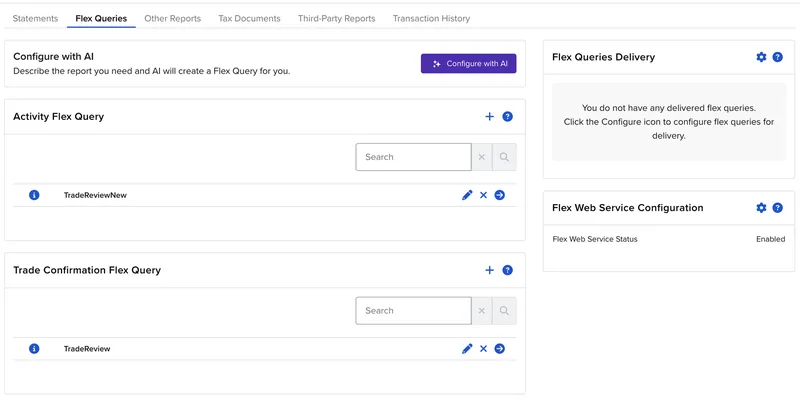
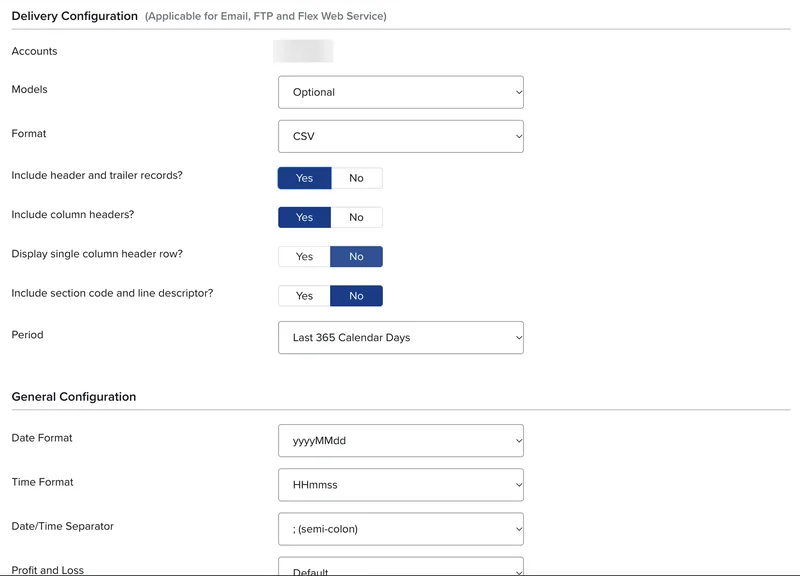
Add the Trades section with the Execution option and Select All ticked. Then set:
- Format: CSV
- Include header and trailer records? Yes
- Include column headers? Yes
- Display single column header row? and Include section code and line descriptor? No
- Period: Last 365 Calendar Days
- Date / time format:
yyyyMMdd,HHmmss, semi-colon separator
2. Create the Trade Confirmation Flex Query
Click + in the Trade Confirmation Flex Query panel, add the Trade Confirmation section with the Execution option and Select All ticked, and use the same delivery settings. The one difference is the Period: set it to Today.
3. Generate a Flex token
Click the gear icon in the Flex Web Service Configuration panel, make sure Flex Web Service Status is ticked, and under Generate New Token set Expire After to 1 Year. Leave Valid for IP Address blank, click Save, and copy the token. TradeReview syncs from cloud servers, so a token locked to one IP address stops working.
4. Connect in TradeReview
Go to Broker Sync → Add new broker, choose Interactive Brokers, and paste three values: the Flex Token, the Activity Flex Query ID, and the Trade Confirmation Flex Query ID. Click the i icon next to each query on the Flex Queries page to see its Query ID. Click Add broker.
TradeReview runs both queries once to check them. This can take up to a minute while IBKR builds the reports. Then it imports your history. If your queries cover several IBKR accounts, each one is linked separately, and paper accounts are labeled as demo automatically.
What gets imported
| Data | Details |
|---|---|
| Asset classes | Stocks, options, futures, and forex |
| Executions | Every fill with time, side, quantity, and price, grouped into trades |
| Costs | IBKR commissions and transaction taxes per execution |
| Options details | Underlying, strike, expiry, put/call, and contract multiplier |
| Futures details | Contract and multiplier, so P&L is in dollars rather than ticks |
| Currency | FX rate to your base currency for non-USD instruments |
| Accounts | Every account in your Flex Queries, each as its own journal account |
A few details that matter for accurate stats:
- Position flips are split. If one order takes you from long 100 to short 50, TradeReview closes the long trade and opens a new short one, instead of blending them into a single confusing trade.
- Cancelled executions are removed. Corrections IBKR posts as cancellations do not inflate your trade count.
- Your edits stay. Notes, tags, strategies, screenshots, and stop loss / take profit levels are kept when a sync updates the trade.
If you trade options or futures heavily, our options trading journal and futures trading journal pages go deeper on the metrics worth tracking for each.
Sync timing: what to expect
- Every hour: TradeReview checks IBKR for new and updated executions.
- Today’s trades: They arrive on the next hourly sync after the fill, through the Trade Confirmation query.
- After the close: When IBKR finalizes the day, the trade is refreshed with final commissions and FX rates.
- Manual resync: Need it now? Click Resync now on the Broker Sync page (once every 15 minutes).
- First import: Up to 365 days of history, based on your Activity query’s period. For older history, you can still upload an IBKR CSV export once.
Troubleshooting common IBKR sync errors
“Broker temporarily unavailable.” IBKR could not generate the report at that moment. This happens most often during IBKR’s overnight and weekend maintenance windows. Nothing is wrong with your setup. Try again in a few minutes, and scheduled syncs will retry on their own.
“Connection failed” right after adding the broker. Double-check the token and both Query IDs. Make sure the Flex Web Service is switched on and the token has no IP restriction.
“The Flex Query returns XML.” Edit the query in Client Portal and change Format to CSV.
“Query IDs look swapped.” The Activity query ID goes in the Activity field and the Trade Confirmation query ID in the Trade Confirmation field.
Status shows “Broken.” Flex tokens expire. Generate a new token in IBKR, click Fix on the Broker Sync page, and paste it.
Frequently asked questions
Does TradeReview support Interactive Brokers paper trading accounts?
Yes. Paper accounts (account IDs starting with DU) sync the same way as live accounts and are labeled as demo in your journal.
Can I connect more than one IBKR account?
Yes. If your Flex Queries include several accounts, for example an individual and an IRA account, TradeReview creates a separate journal account for each one.
Why do I need two Flex Queries?
IBKR splits its data in two. The Activity report is complete and final but only updates after the trading day ends. The Trade Confirmation report is available within minutes but only covers recent days. Using both gives you full history and same-day trades, with final numbers once IBKR settles the day.
Can TradeReview place trades in my IBKR account?
No. The Flex Web Service is read-only. It can download the reports you configured, and nothing else.
Do I still need to export CSV files?
Not with auto sync. File import remains available on all paid plans if you prefer it, or if you want to bring in history older than 365 days. See how to import Interactive Brokers trades from a file.
Related reading
- Auto import broker connections: how broker sync works and why it beats manual entry
- Supported brokerage: every broker and platform that connects to TradeReview
- What is a trading journal?: what to record and why it matters
- Why every trader needs a trading journal: the case for a consistent review habit
Connect Interactive Brokers to TradeReview and let your journal fill itself.