Expectancy per setup
What each tag actually returns on average, not what it feels like it returns.

MetaTrader 5 · Forex
Two ways in: let Auto Sync pull closed trades from the MT5 terminal every hour, or export one HTML report and upload it. Either way your fills arrive with P&L, win rate and expectancy already worked out.
Can I connect Prime Markets FX to TradeReview?
Yes. Prime Markets FX runs on MetaTrader 5, and TradeReview connects to MT5 through the terminal rather than through a broker-specific integration — so every Prime Markets FX MT5 account works. Auto Sync imports your full history on the first connection and then updates roughly every hour on the Pro plan ($19.90/mo), using the read-only investor password. If you'd rather not link credentials at all, export an HTML history report from the Prime Markets FX MT5 terminal and upload it on Basic ($9.90/mo) or Pro. Manual journalling is free, with no card and no time limit.
Both paths end in the same journal. Auto Sync is set-and-forget; file import is a one-off you repeat whenever you want fresh trades.
Watch the 3-minute MT5 sync walkthrough
Use the MetaTrader 5 desktop app your broker gave you, not a generic install — History and Report export have to match the account.
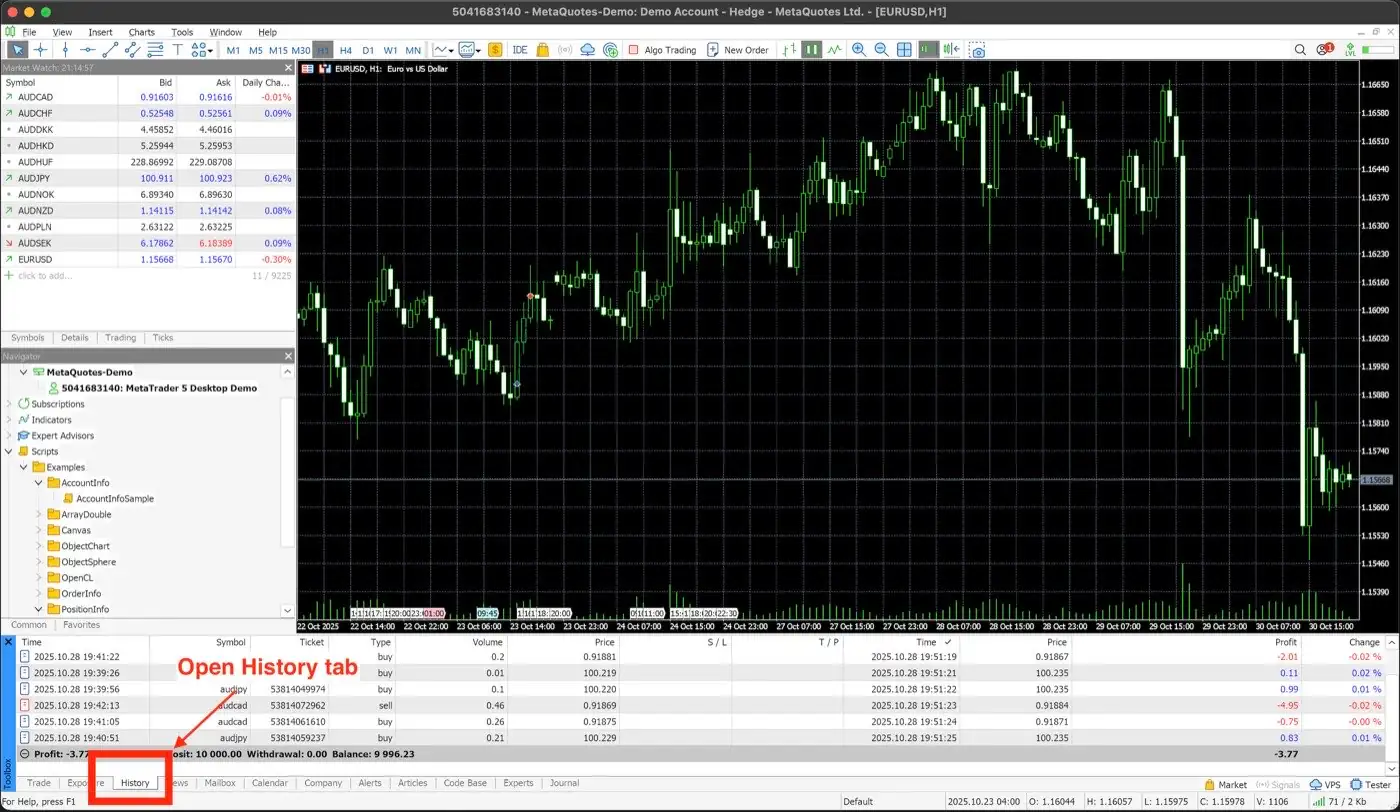
Step 1
In the Terminal window, select the History tab.
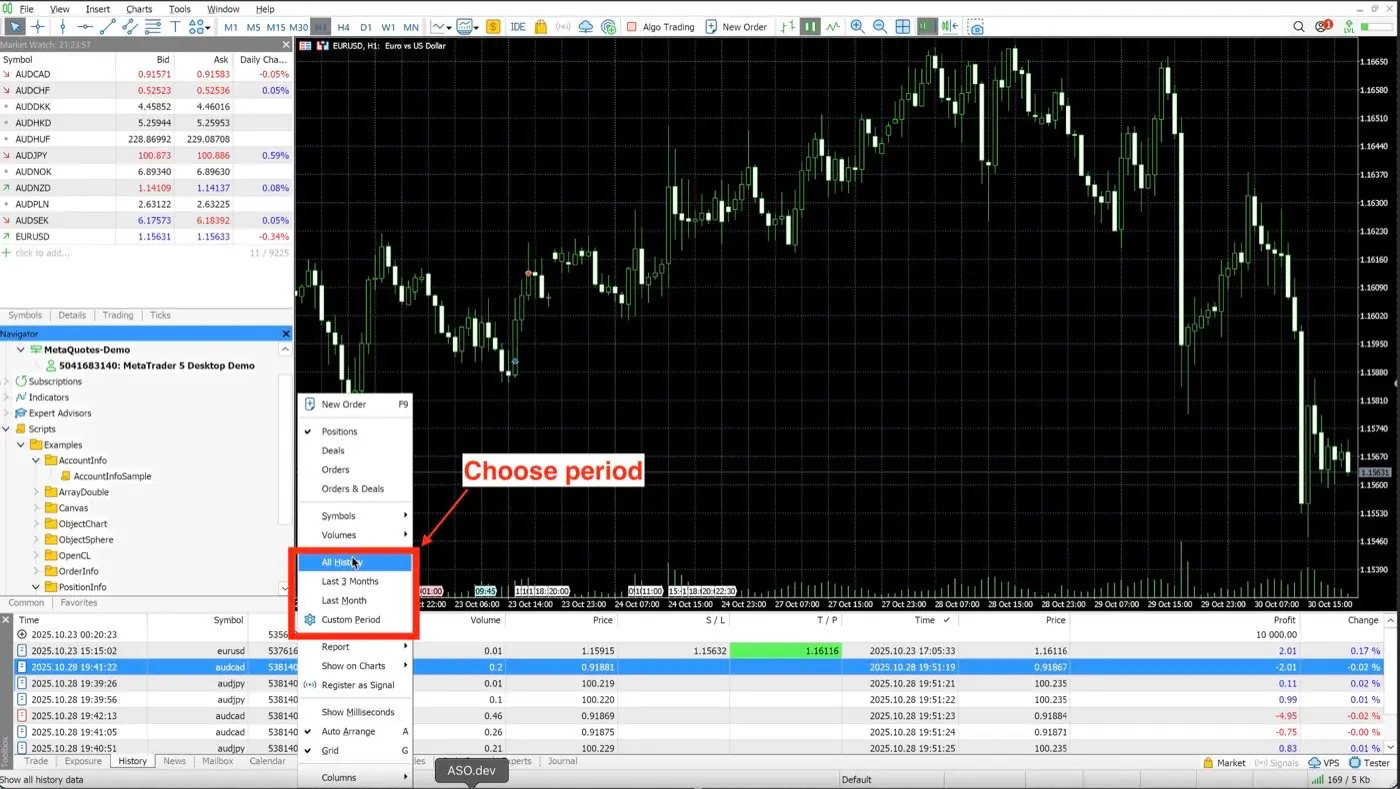
Step 2
Right-click and pick the period you want — All history for a first import.
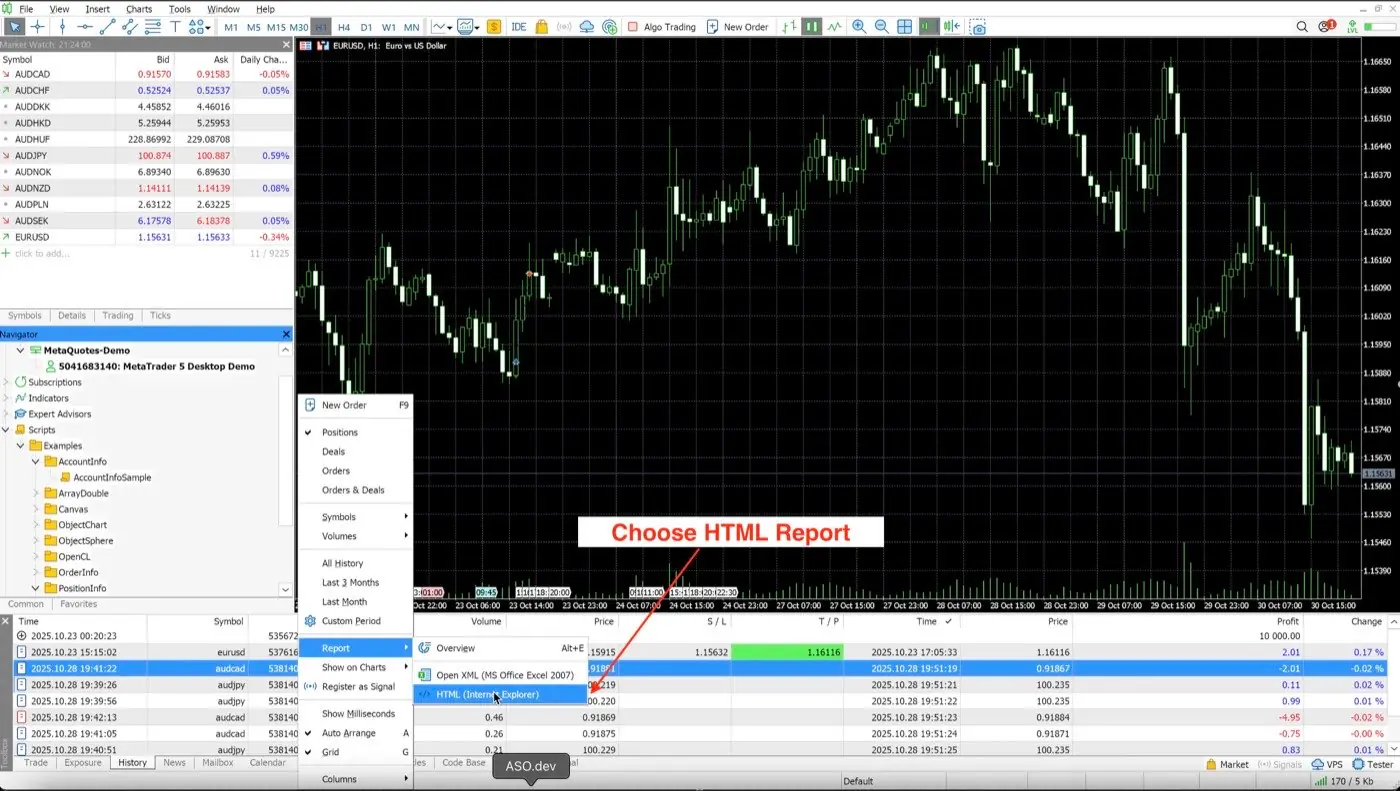
Step 3
Right-click again → Report → HTML, and save the file in English.
MT5 shows you a list of closed positions. Once that history is in TradeReview it becomes a record you can question — by session, by symbol, by the reason you wrote down before you clicked.
What each tag actually returns on average, not what it feels like it returns.
London vs New York, split out — most forex journals hide this inside one number.
Whether your winners are paying for the losers, or a single outlier is.
A weekly pass over the trades you flagged, with notes and screenshots attached.
Server names are case- and suffix-sensitive. Copy it from the MT5 login window rather than typing it, and try the investor password as well as your regular one.
Usually a password change on the broker side. Click Fix on the Broker Sync page and re-enter — history already imported stays put.
The report has to be HTML from History → Report, and it has to be in English. Switch MT5 to English under View → Languages and export again.
Auto Sync updates hourly and only picks up closed positions. Resync now is available about once every 15 minutes.
No. Any Prime Markets FX MetaTrader 5 account works — live, demo or a prop challenge. There is nothing to enable on the broker's side; you only need the server name, login and password the account was opened with.
Use the investor password. It is read-only by design — it can pull history and nothing else. No one can place or close a trade with it.
The first Auto Sync pulls everything the terminal holds for that account. For file import you choose the period yourself when you right-click History — pick All history the first time, then shorter windows for top-ups.
Yes. Pick Demo under account type when you connect, or upload the report. Challenge accounts are journalled the same way as live ones.
No. This is an independent setup guide. We are not partnered with, endorsed by or sponsored by Prime Markets FX, and we take no cut of anything you trade there.
The journal itself is free with manual entry and no time limit. File import starts at $9.90/mo on Basic; Auto Sync is $19.90/mo on Pro.
Create a free account, connect the account you actually trade, and let the first sync tell you something you didn't know.
TradeReview is not affiliated with Prime Markets FX. The Prime Markets FX name is used here for identification only and does not imply endorsement or sponsorship. Trading involves risk; nothing on this page is financial advice.