
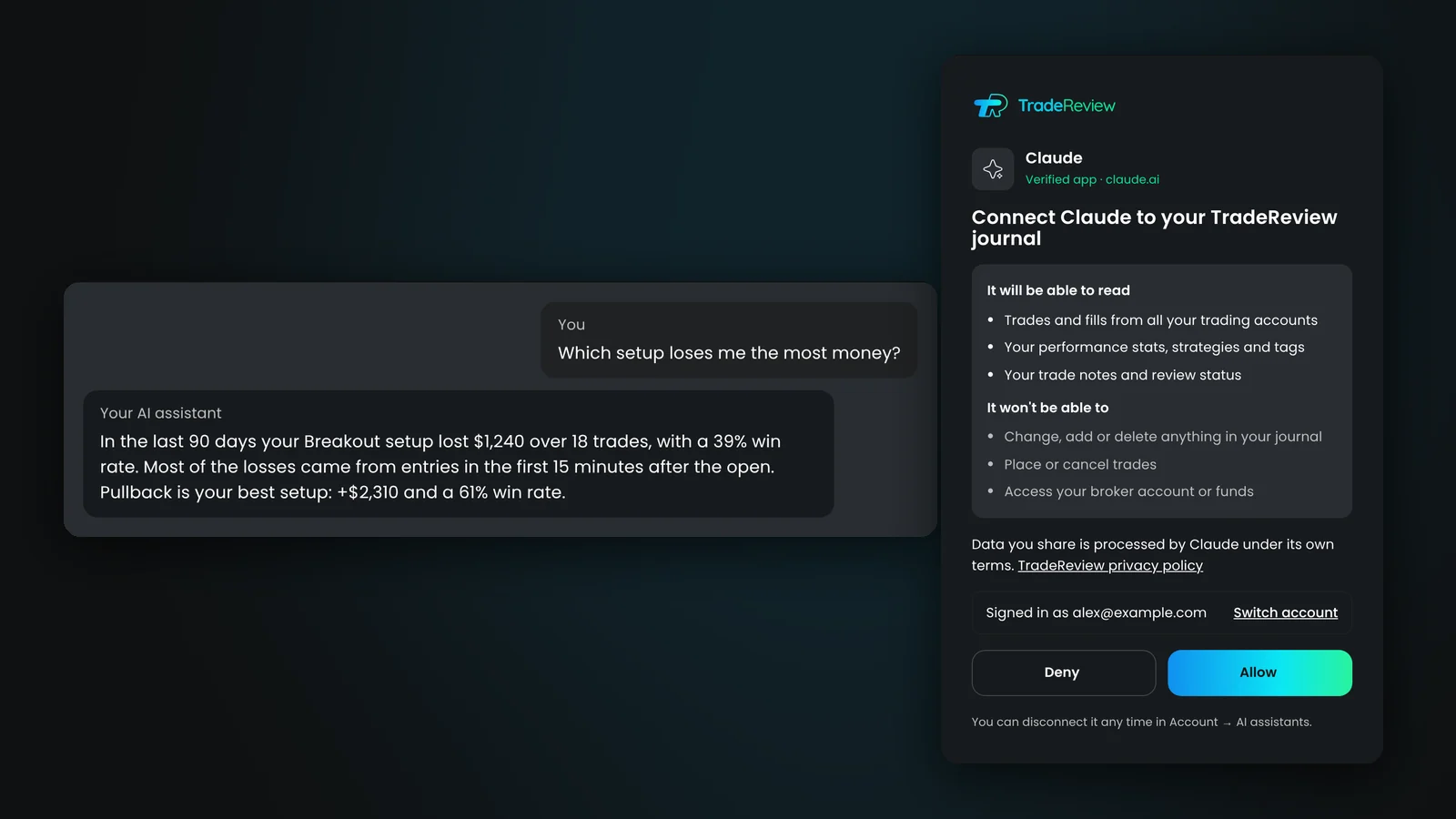
You can connect Claude, ChatGPT and other AI assistants straight to your trading journal and ask about your own trades in plain language. In TradeReview it takes about two minutes: copy one server URL into the AI app, sign in to TradeReview, click Allow. From then on, “Which setup loses me the most money?” gets an answer built from your real trades, P&L and notes, with links to the trades behind it.
The connection uses MCP (Model Context Protocol), the open standard Claude, ChatGPT, Cursor and VS Code use to talk to other apps. It is read-only: the assistant can read your journal, but it can’t change it, place trades or reach your broker.
What connecting your journal actually does
An AI assistant on its own knows nothing about your trading. Without a connection you have two options, and both are weak:
- Paste numbers into the chat. You do the analysis first, then ask the AI to comment on it.
- Upload a CSV export. The AI has to work out your columns, fees and partial fills on its own, and the file is out of date the moment you take another trade.
With MCP, the assistant asks the journal instead. When you ask “How did my breakout trades do in March?”, it looks up March, filters to the Breakout strategy and gets back the numbers your journal already calculates: net P&L after fees, win rate, average win and loss, profit factor. It then explains them and links the trades it is talking about, so you can open any of them in one click.
Because the journal does the maths, the assistant isn’t guessing at your P&L from a spreadsheet. It reads the same figures you see on your dashboard.
What you can ask
Good questions are specific about the period and the decision you are trying to make. Some examples, and what the assistant looks up to answer them:
| Ask | What it looks at |
|---|---|
| “Review my trading last week.” | Results, mistakes, unreviewed trades, and one focus for next week |
| “Which setup loses me the most money?” | Performance by strategy and by tag |
| “Which of my rules do I break most often, and what does it cost?” | How often each strategy rule is followed, and the trades that missed one |
| “Which day of the week do I trade best?” | Results by weekday |
| “Show my five worst trades this month and what they have in common.” | The worst trades, with their notes, tags and missed rules |
| “Compare my strategies this year.” | Each strategy’s P&L, win rate and sample size |
| “Which trades are missing a stop loss?” | Trades without a stop |
If you don’t name a period, the assistant looks at the last 90 days. Ask follow-ups the way you would ask a trading coach: “Only the long trades”, “Now just NQ”, “What changed after I added the 15-minute rule?”
How to connect Claude or ChatGPT
You need a TradeReview Basic or Pro plan and an AI app that supports custom connectors (remote MCP servers).
- Copy the server URL. In TradeReview, open Account → AI assistants. The page shows the server URL,
https://mcp.tradereview.app/mcp, with step-by-step instructions for each app. - Add it to your AI app. In Claude, open Settings → Connectors → Add custom connector, name it TradeReview and paste the URL. In ChatGPT, turn on developer mode and add a custom connector with OAuth. In Claude Code, run one command; in Cursor or VS Code, add the URL to
mcp.json. - Sign in and allow. The AI app opens TradeReview. Check the account shown, then click Allow.
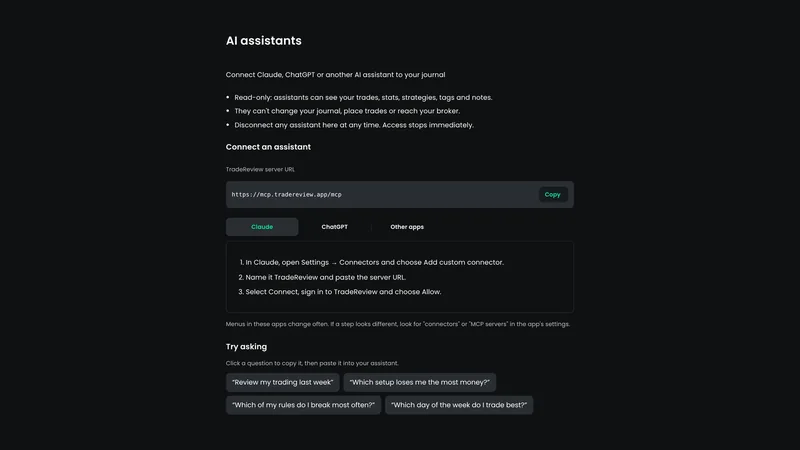
The step-by-step guide in the help center covers each app, including Claude Code, Cursor and VS Code, plus troubleshooting.
What the assistant can and can’t do
Before anything is shared, TradeReview shows a consent page that spells out the access:
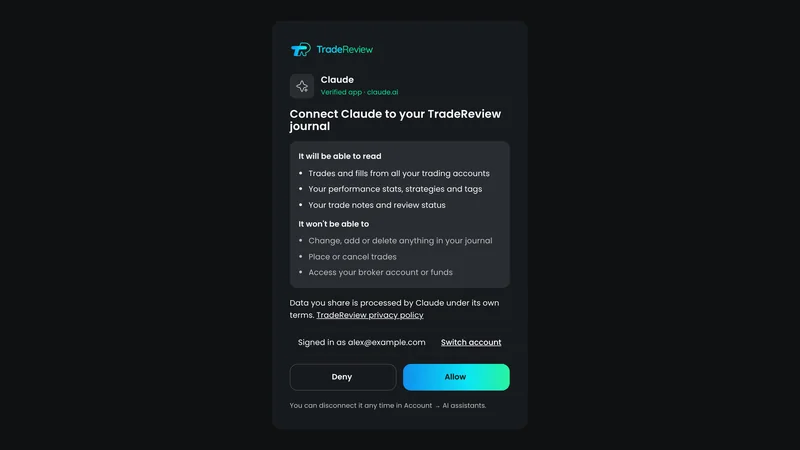
- It can read trades and fills from all your trading accounts, performance stats, strategies, tags, rules, trade notes and review status.
- It can’t change, add or delete anything in your journal, place or cancel trades, or access your broker account or funds.
- You stay in control. Every connected assistant is listed under Account → AI assistants with when it was last used. Disconnect removes its access immediately.
You never give the AI app your password or an API key. It gets a token that only works for reading your journal, and only for as long as the connection exists. TradeReview only sees the lookups the assistant makes (for example “performance for March”), not the rest of your conversation.
How to get better answers
The assistant can only be as specific as your journal. Three things make the biggest difference:
- Name your setups. Put trades in strategies or tag them with the setup. “Which setup loses money?” has no answer if every trade is untagged.
- Write the rules down. Strategy rules let the assistant tell you which rule you break and what it costs, instead of guessing from your P&L.
- Leave a line of notes. One sentence per trade (“chased the open”, “moved my stop”) gives the assistant something to find patterns in.
Then check its work. Each answer links the trades it used. If a conclusion surprises you, open two or three of them before changing your plan.
Limits worth knowing
- AI can still misread. The numbers come from your journal, but the explanation is the AI’s. Treat it like a second opinion, not a verdict.
- Small samples mislead. “Your best setup” based on six trades is noise. Ask the assistant for the trade count and ignore anything under 20 or so.
- Your data goes to the AI provider. What you share is processed by Claude, ChatGPT or whichever app you use, under that company’s terms. Disconnect any assistant you stop using.
- Plans. Connecting AI assistants is included in TradeReview Basic and Pro (pricing). Each connection can make up to 1,000 lookups a day, which is far more than a normal review session uses.
If you would rather not use a separate AI app, TradeReview also has AI Chat built in, with a monthly message allowance on every plan.
FAQ
Which AI apps work? Any app that supports remote MCP servers: Claude (web, desktop and mobile), Claude Code, ChatGPT with developer mode, Cursor, VS Code and others.
Can the AI place trades or change my journal? No. The connection is read-only. It can’t edit your journal or reach your broker.
Does it see all my accounts? Yes, it can read trades from all your trading accounts. Ask about one account by name if you want a narrower answer.
How do I disconnect? Open Account → AI assistants in TradeReview and click Disconnect next to the assistant. Access stops immediately.
Is it free? Connecting AI assistants is part of the Basic and Pro plans. The Free plan shows what it does and how to upgrade. Your AI app may need its own plan for custom connectors.
Try TradeReview free and connect your first assistant when you are ready.