Pivot table filtering is how you zero in on a specific slice of your data, temporarily hiding everything else. It lets you isolate key information, ask very specific questions, and pull out insights that would otherwise be lost in a sea of numbers. Think of it as having a direct conversation with your dataset — one that helps you make smarter, more informed decisions.
Why Mastering Filters Unlocks Deeper Insights
Staring at a massive spreadsheet can feel overwhelming. We’ve all been there. You know the answers are in there somewhere, but digging through thousands of rows feels like an impossible task. This is where a solid grasp of pivot table filtering becomes your most valuable analytical tool. It’s what takes you from just summarizing data to actually investigating it.
Good filtering isn’t about hiding data — it’s about asking smarter questions. Instead of just looking at total sales, you can ask, “What were our sales for the top-performing product line last quarter?” Or, for traders, “Which of my strategies had the highest win rate during high-volatility periods?” Getting this granular is essential for making sharp, data-driven decisions. If you’re a trader, you can dive deeper into how to calculate win rate in our dedicated article.
Your Roadmap to Filtering Excellence
Each filtering method has its own job, and knowing which one to grab is half the battle. A quick search is perfect for finding a single item, while slicers are brilliant for building an interactive dashboard anyone can use.
This simple mental model can help you pick the right tool for the job.
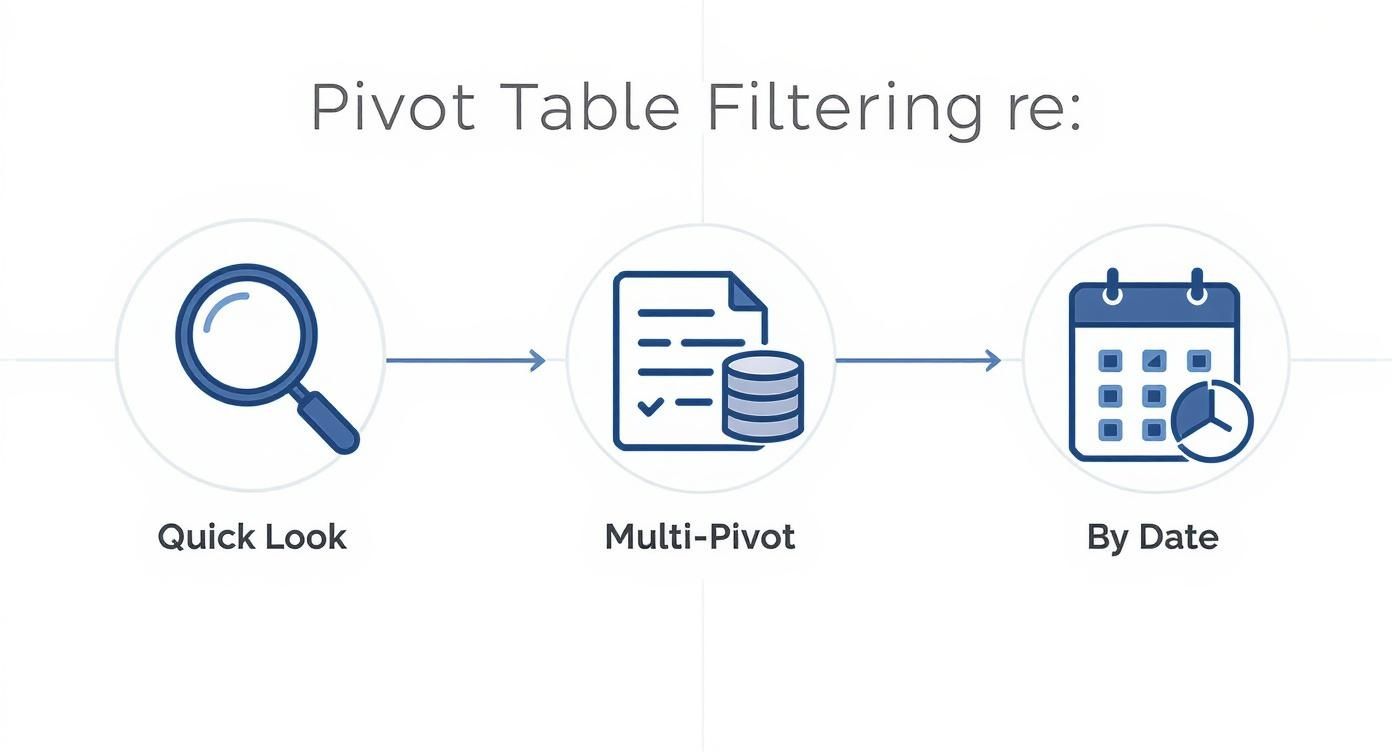
As the visual guide shows, your goal — whether it’s a quick lookup, controlling multiple pivots at once, or a date-based analysis — points you toward the best filtering method.
This shift toward user-led analysis is a big deal. The evolution of pivot tables has fueled the rise of self-service business intelligence, empowering people to explore data on their own. In fact, a 2021 report from MicroStrategy found that over 60% of employees now have access to self-service analytics tools, allowing them to apply dynamic filters and find their own answers without waiting on IT.
To help you decide which filter to use and when, here’s a quick summary of the primary methods and where they really shine.
Choosing the Right Pivot Table Filter
| Filter Type | Best For | Practical Example |
|---|---|---|
| Label & Value Filters | Conditional filtering based on text or numbers. | Finding all products with “Premium” in their name or sales above $10,000. |
| Search Box | Quickly finding and isolating a specific item. | Locating a single customer’s data in a large list without manual scrolling. |
| Manual Selection | Selecting a specific, non-sequential group of items. | Analyzing performance for a handpicked group of sales regions. |
| Slicers & Timelines | Creating interactive, visual dashboards. | Building a report where users can click buttons to filter by year, quarter, or product. |
| Top/Bottom N Filters | Highlighting top performers or problem areas. | Identifying the top 10 best-selling items or the bottom 5 underperforming assets. |
Ultimately, picking the right tool makes your analysis faster, clearer, and more impactful.
By learning to filter with intention, you’re not just organizing a spreadsheet; you’re building a framework for disciplined, repeatable analysis that can consistently reveal opportunities and risks.
Building Your Foundational Filtering Skills
Before you can build those slick, interactive dashboards, you have to get your hands dirty with the everyday filtering tools that do all the heavy lifting. Mastering these isn’t just about learning features; it’s about building muscle memory for data analysis. This is what lets you ask questions of your data quickly and confidently.
Let’s start with the most direct method: manual checkbox selections. When you click the filter dropdown on a field — say, ‘Strategy’ in a trading journal — you get a list of every unique entry. Just uncheck “(Select All)” and then tick the boxes for the specific strategies you want to compare, like ‘Breakout’ and ‘Mean Reversion’. It’s perfect for those quick, on-the-fly comparisons.
Finding Needles in the Haystack
What happens when your list is too long to scroll through? The search bar becomes your best friend. Instead of hunting for a specific client or stock ticker, just type part of its name into the search box. Excel or Google Sheets will instantly shrink the list down, letting you grab exactly what you need in seconds.
For a sales manager with hundreds of products, this is a lifesaver. Rather than scrolling endlessly, they can type “Pro” to find all products with “Pro” in their name, select them, and immediately see how they’re performing as a group. This kind of efficiency is why pivot tables are so approachable. If you’re new to this, checking out a beginner’s guide to Excel pivot tables can give you a great head start.
Going Beyond Basic Selections
Once you move past simply picking items from a list, you unlock more powerful, rules-based filtering. These tools are split into two main camps that help you ask much more sophisticated questions of your data.
- Label Filters: These are all about the text. You can filter for items that ‘Begin With’ a certain word, ‘Contain’ a specific phrase, or ‘Do Not End With’ a particular suffix. For an operations analyst, this is perfect for isolating all product SKUs that start with “DISC-” to review discontinued items in one go.
- Value Filters: This is where you focus on the numbers. You can show items ‘Greater Than’ a certain value, ‘Less Than’ a target, or even use the awesome ‘Top 10’ filter to see your best (or worst) performers. For a trader using a journal, this could mean instantly filtering to see only trades with a profit greater than $500.
Knowing when to use a Label Filter versus a Value Filter is a key step. One interrogates the ‘what’ (the text labels), while the other interrogates the ‘how much’ (the numbers).
This discipline — choosing the right tool for the question you’re asking — is what separates a basic user from a real analyst. It turns a simple summary tool into a precise instrument for discovery.
How Slicers and Timelines Transform Your Reports
If you’re still clicking through dropdown menus for pivot table filtering, you’re missing out on a much more intuitive and powerful way to interact with your data. Let’s talk about Slicers and Timelines — the features that can turn a static report into an interactive dashboard that anyone can use.
Think of slicers as big, friendly buttons that sit right on top of your worksheet. Instead of digging into a tiny dropdown arrow, you just click a category — like “AAPL” or “Breakout Strategy” — and your entire pivot table updates instantly. It makes the whole filtering process visual, tactile, and much faster.
Creating Your First Slicer
Getting one set up is remarkably simple. Just click anywhere inside your pivot table, which brings up the PivotTable Analyze tab in the ribbon. From there, hit Insert Slicer. A new window will pop up, showing you all the fields from your pivot table. All you have to do is check the box next to the field you want to filter by and click OK.
For a trader analyzing their journal, this is a game-changer. Imagine inserting slicers for ‘Strategy’, ‘Ticker’, and ‘Trade Type’ (Long/Short). Now you can mix and match filters with a single click to answer complex questions like, “How did my ‘Mean Reversion’ strategy perform on ‘SPY’ for just my long trades?”
Here’s a look at how these visual filters appear on a worksheet, in this case with slicers for ‘Region’ and ‘Salesperson’.

This kind of setup makes it incredibly easy for anyone, even people who have never touched a pivot table, to start exploring the data and finding their own insights.
Using Timelines for Date-Based Analysis
While slicers are perfect for text-based categories, Timelines are a special kind of slicer built just for dates. They give you a sleek, scrollable timeline that lets you filter data by years, quarters, months, or even down to specific days. For anyone analyzing performance over time, this beats wrestling with complex date filters hands down.
To add one, just select your pivot table, head back to PivotTable Analyze, and click Insert Timeline. This is incredibly handy for traders who need to see how they performed during specific market periods, like a high-volatility month or the week after a major economic report. Sliding through time periods visually just makes spotting trends feel much more natural. And if you’re building out a comprehensive P&L, our guide on a profit and loss template for Google Sheets is a great place to start.
These interactive tools aren’t just a gimmick; they make data more accessible. By making reports interactive, organizations can encourage more people to engage with the data directly, fostering a culture of data-driven decision-making.
Here’s a pro tip: The real magic happens when you connect a slicer to multiple pivot tables. Right-click a slicer, go to ‘Report Connections,’ and link it to any other pivots on your sheet. Now, one click updates an entire dashboard, making sure all your charts and tables are telling the same, consistent story. This is the secret to building truly professional-grade reports.
Putting Filters to Work on a Trader’s Performance Journal
Theory is one thing, but getting your hands dirty with a real-world problem is where the learning really sticks. For traders, disciplined analysis isn’t just a nice-to-have; it’s a critical part of long-term survival in the markets. A trading journal is your ultimate source of truth, and pivot table filtering is the tool that lets you uncover that truth without emotion getting in the way.
Let’s picture a trader’s journal with columns like ‘Ticker,’ ‘Strategy,’ ‘Date,’ ‘P/L’ (Profit/Loss), and ‘Holding Period.’ Just staring at the total P/L is pure vanity. The real gold is found by asking sharp, specific questions of your data.

Combining Filters for Deeper Insights
A single filter is useful, but the real magic happens when you start layering them. Let’s tackle a common question every trader should ask: “What were my top five most profitable ‘Breakout’ trades last quarter?”
Answering this means combining multiple filter types, which is exactly how a professional analyst digs into a dataset.
First, we’ll set up a pivot table to show the sum of ‘P/L’ for each individual trade. Then, we’ll bring in the heavy hitters — Slicers, a Timeline, and a Value Filter — to slice and dice the data with surgical precision.
Here’s how this multi-layered approach plays out:
- First, insert a Timeline for the ‘Date’ field. This gives you a slick, visual way to select the previous quarter. Forget manually picking dates; just click “Q3” or drag the handles to cover the exact period you’re reviewing.
- Next, add Slicers for ‘Strategy’ and ‘Ticker’. These are basically interactive buttons that let you instantly zero in on specific setups. For our question, we’d click the “Breakout” button on the ‘Strategy’ slicer.
- Finally, apply a Value Filter to find the best performers. With the date range and strategy now isolated, head to the Row Labels filter dropdown, choose ‘Value Filters,’ and select ‘Top 10’. Just change the “10” to a “5,” and you’re looking at only your five most profitable trades under those exact conditions.
This combination instantly turns a massive, overwhelming list of trades into a focused, actionable report. You now have a crystal-clear view of your biggest winners in a specific context, ready for a deep dive. If you’re looking to build your own system from scratch, our guide on creating a trading journal in Excel is a great place to start.
This whole process forces you to move beyond gut feelings. Instead of thinking, “I feel like my breakout strategy is working,” you can prove it with data and answer exactly when and where it performed best.
Answering the Hard Questions About Your Performance
This technique isn’t just for finding your greatest hits. The real goal here is self-assessment and constant improvement. By simply swapping out filters, a trader can get definitive answers to other critical questions that directly impact their P/L.
- “Am I more profitable on certain days of the week?” Use the Timeline to filter by specific days or compare your performance in the first week of the month versus the last.
- “How does my performance differ between long and short trades?” Add a slicer for a ‘Trade Direction’ field (Long/Short). It will immediately split your P/L and reveal if you have a hidden bias or weakness.
- “Which tickers are just draining my account?” Instead of a ‘Top 5’ Value Filter, flip it and use a ‘Bottom 5’ to expose your worst-performing stocks. These might be candidates to remove from your watchlist entirely.
This methodical approach to filtering encourages the kind of disciplined, long-term thinking that separates consistently successful traders from the rest. It’s not about finding a magic bullet; it’s about understanding your own patterns, strengths, and weaknesses with brutal honesty.
Solving Common Filtering Problems
Even after you’ve mastered the basics, pivot tables can throw you a curveball. A small glitch can feel like a huge roadblock, but trust us, most of these issues have surprisingly simple fixes. We’ve all been there. Learning to troubleshoot them on the fly is what separates a casual user from a data-savvy analyst.
One of the most common headaches is seeing old items still hanging around in a filter list. You know you deleted a certain product category from your source data, but it just won’t disappear from the filter dropdown. These are often called “ghost items.”
This happens because your pivot table keeps a memory, or a cache, of old data to keep things running quickly. The first thing you should always try is a simple refresh. Just right-click anywhere in your pivot table and hit ‘Refresh’. If that doesn’t clear it out, you’ll need to dig one step deeper.
Getting Rid of Ghost Items for Good
To tell Excel to forget the old data for good, you just need to tweak one setting. This forces your filter lists to only show what’s actually in your current dataset, keeping everything clean and accurate.
- Right-click the pivot table and select PivotTable Options.
- Jump over to the Data tab.
- Look for “Number of items to retain per field” and switch it from ‘Automatic’ to ‘None‘.
- Click OK, then refresh your pivot table one last time.
That’s it. This little adjustment cleans up any lingering data and stops the problem from coming back.
Why Is My Slicer Greyed Out?
Another classic issue: a slicer that’s greyed out and completely unresponsive. This almost always means its connection to the pivot table is broken. It happens a lot if you copy the slicer or accidentally delete the pivot table it was originally linked to.
The key takeaway here is that every slicer needs a live connection to at least one pivot table. Without that link, it’s just a floating, useless box on your spreadsheet.
Fixing it is easy. Right-click the dead slicer and choose Report Connections. A box will pop up listing every pivot table in your workbook. Just tick the checkbox for the pivot table you want it to control, and your slicer will instantly spring back to life.
Finally, what if your filters suddenly show no results at all? This is usually a classic case of “over-filtering.” When you apply several filters at once — say, a specific date range, a product category, and a sales region — you might have created a set of conditions that no single row of data can meet. The fix is to work backward. Remove one filter at a time to figure out which one is the culprit.
Common Questions About Pivot Table Filtering
Even when you feel like you have a handle on pivot table filters, you’ll inevitably run into a few tricky situations. It happens to everyone. Getting quick answers to these common hang-ups can save you a ton of time and keep your analysis on track. Let’s tackle some of the questions that pop up most often.
How Do I Filter Multiple Pivot Tables at Once?
Without a doubt, the best way to control several pivot tables simultaneously is with Slicers or Timelines. These tools were literally built to create dynamic, connected dashboards.
Once you’ve set up a slicer for one pivot table, linking it to others is simple. Just right-click the slicer and choose ‘Report Connections’. A dialog box will pop up listing every pivot table in your workbook. From there, just tick the boxes for the other tables you want that slicer to control.
This is the secret to building powerful reports where a single click updates multiple charts and tables, keeping everything perfectly in sync. The only catch is that all the connected pivot tables must be based on the exact same data source.
Why Are Old Items Still Showing in My Filter List?
This is a classic pivot table problem. It happens because the pivot table’s cache holds onto old data to speed things up, leaving you with “ghost items” that clutter your filter lists.
Your first move should always be a simple refresh. Right-click the pivot table and hit ‘Refresh’. If those old items are still hanging around, you’ll need to dig into the settings.
- Go to PivotTable Options and click the Data tab.
- Look for the setting ‘Number of items to retain per field’.
- Switch it from ‘Automatic’ to ‘None‘.
Click OK, refresh one more time, and those ghost items will vanish for good.
This simple fix is a crucial piece of data hygiene. Keeping your filter lists clean ensures you’re only working with relevant, current data, which is essential for accurate analysis.
Can I Filter a Pivot Table Based on a Value in a Separate Cell?
While there isn’t a direct, one-click feature for this, it is possible with a bit of advanced work. For users comfortable with scripting, a VBA macro can solve this.
You’d write a script that essentially “watches” a specific cell. Whenever the value in that cell changes, the macro automatically updates the corresponding pivot table filter to match. This requires some basic coding knowledge but opens the door to creating highly customized and dynamic report controls that go beyond what standard slicers can do.
What Is the Difference Between a Report Filter and a Slicer?
Both are tools for pivot table filtering, but they offer completely different user experiences.
A Report Filter is the traditional dropdown you see in the ‘Filters’ area of the PivotTable Fields pane. It gets the job done, but it’s tied to a single pivot table and can feel a bit clunky, especially for people who aren’t familiar with pivot tables.
A Slicer, on the other hand, is a modern, visual filtering tool. It’s an interactive object with buttons that sits right on your worksheet. Slicers have two huge advantages:
- They make the current filter status crystal clear at a glance.
- They can be connected to multiple pivot tables at the same time.
For building interactive and shareable reports, slicers are almost always the better choice. Their user-friendly design and dashboarding power make them far superior.
Ready to stop relying on gut feelings and start making data-driven trading decisions? TradeReview offers a powerful, intuitive trading journal to help you track your performance, analyze your strategies, and find your edge. Log your trades, sync with your broker, and uncover actionable insights with our detailed analytics — all for free. Start your journey to disciplined trading with TradeReview today.