
MetaTrader 5
Tradeslide Technologies trading journal for MetaTrader 5
Use TradeReview as a Tradeslide Technologies trading journal with MetaTrader 5. Connect with Auto Sync to import trades automatically, or export an HTML report from MT5 and use File Upload.
What you get with a Tradeslide Technologies trading journal
After your Tradeslide Technologies MT5 history is in TradeReview, you can review win rate, P&L, expectancy, and trade notes in one place — instead of piecing performance together from the terminal alone.
Tradeslide Technologies trading journal via MT5 Auto Sync
Syncing your Tradeslide Technologies MetaTrader 5 account with TradeReview is straightforward. Prefer to watch? This walkthrough covers connecting MT5, sync status, and viewing imported trades in your trading journal.
Auto Sync needs a TradeReview Pro subscription, plus your Tradeslide Technologies MT5 server name, login, and password (investor/read-only is recommended).
- Open the Broker Sync page in TradeReview, or click the + button in the sidebar and choose Broker Sync.
- Click Add new broker.
- Select MetaTrader 5 from the broker list.
- Choose Live or Demo under Account type.
- Enter your Tradeslide Technologies MT5 credentials: Server, Login (account number), and Password (or investor password).
- Click Add broker. TradeReview validates your credentials and starts the initial sync.
After connecting, TradeReview imports full history on first sync, then updates about every hour. You can also trigger Resync now from the Broker Sync page.
Important notes
- Investor password: Prefer the investor (read-only) password when connecting. Brokers often create it automatically — check the MT5 Mailbox tab or emails from Tradeslide Technologies.
- Troubleshooting: If connection fails, confirm the server name, login, and password. Try both your regular and investor passwords. If status shows Broken (for example after a password change), click Fix on the Broker Sync page and re-enter credentials.
- Resync: Manual Resync now is available about once every 15 minutes.
Import Tradeslide Technologies trades into your trading journal
Prefer a one-time import? Export an HTML history report from the Tradeslide Technologies MT5 terminal and upload it to your TradeReview trading journal. File upload is available on paid plans — see pricing.
- Open the MetaTrader 5 desktop app for your Tradeslide Technologies account.
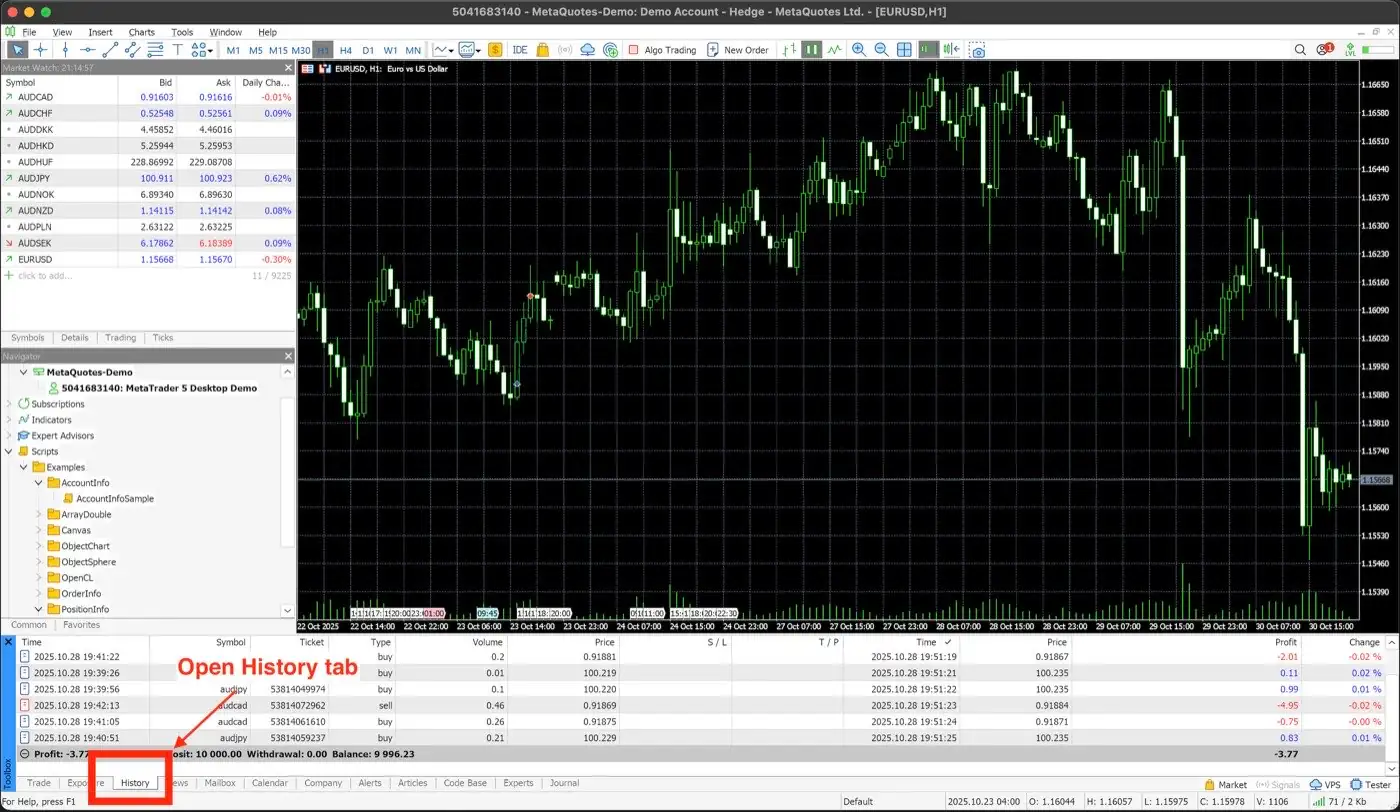
- In the Terminal window, select the History tab.
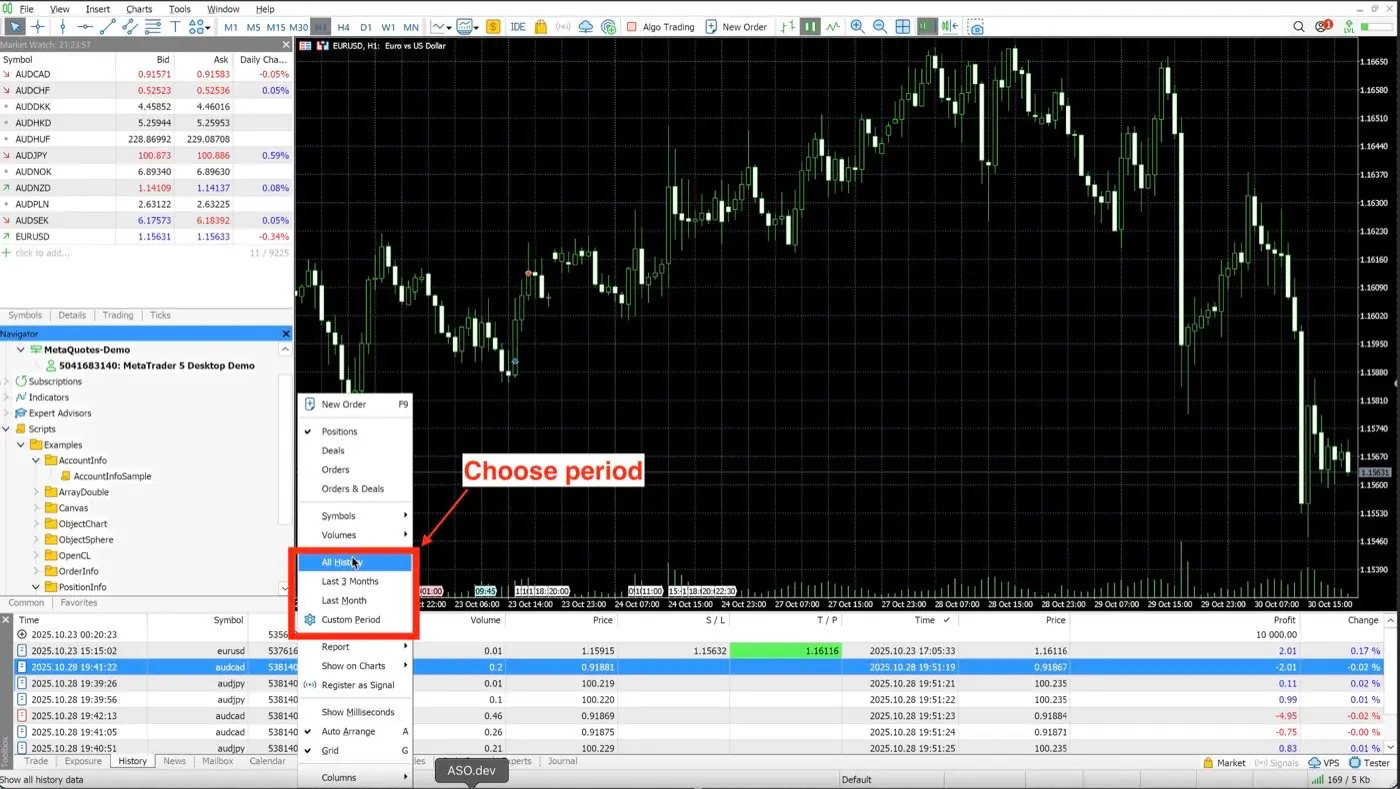
- Right-click in History and choose the time period you want to export.
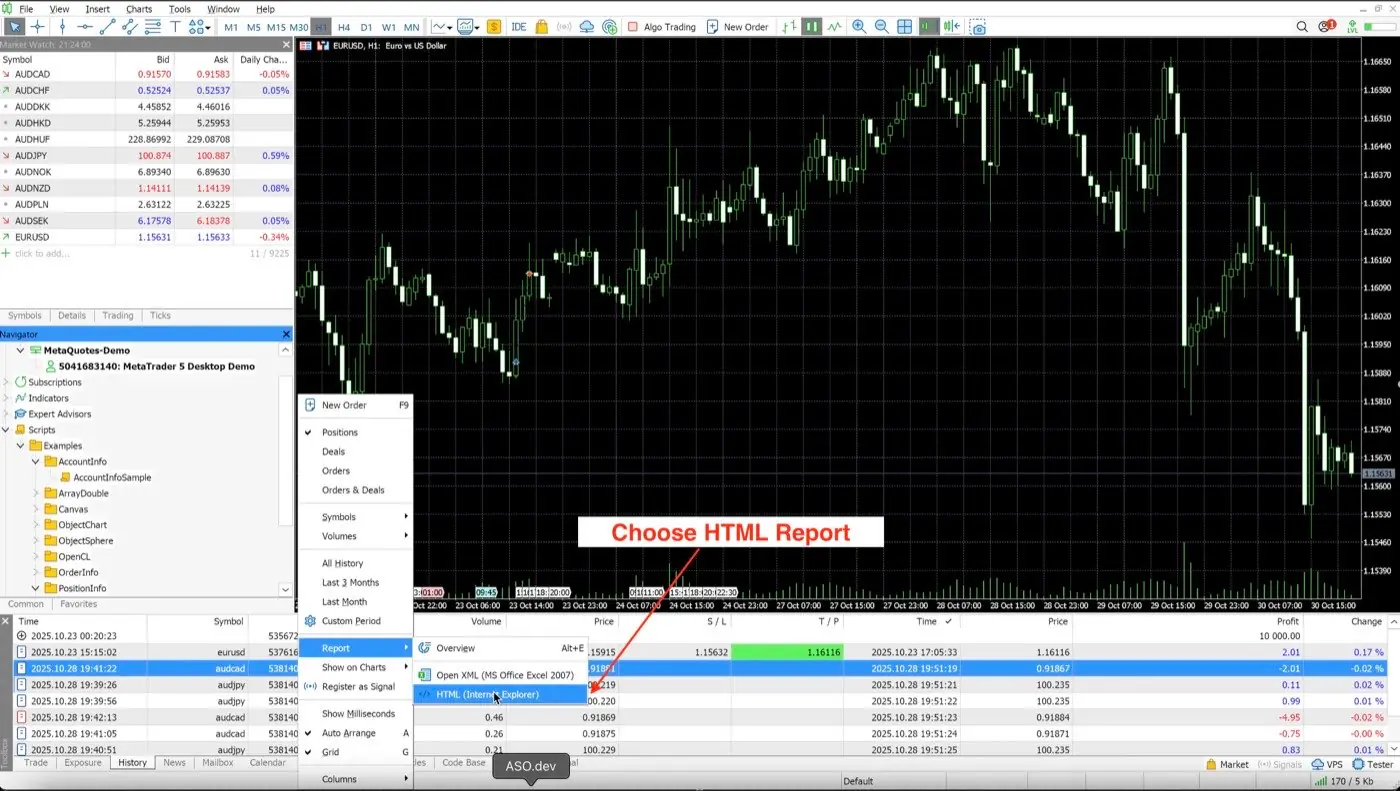
- Right-click again, select Report → HTML, and save the file. Make sure the report is in English.
- Open the File Upload page in TradeReview (or click + in the sidebar), select your account, choose MetaTrader 5, and upload the HTML file.
Common errors
- HTML file must be in English. In MT5, go to View → Languages and select English, then export the report again.
- Use the broker-specific MT5 terminal. Download MetaTrader 5 from Tradeslide Technologies (not a generic install) so History and Report export match your account.
- Wrong file type. Upload the HTML report from History → Report → HTML — not a CSV or screenshot.
Start your Tradeslide Technologies trading journal
Create a free TradeReview account to start your trading journal, then upgrade to Pro for MetaTrader 5 Auto Sync and file import — and review win rate, P&L, and expectancy from your Tradeslide Technologies history.
TradeReview is not affiliated with Tradeslide Technologies. Any use of the Tradeslide Technologies name on this page is for informational purposes only and does not imply endorsement or sponsorship.