Building a pivot table might sound complex, but the process is surprisingly straightforward. You simply highlight your entire dataset, find the “Insert PivotTable” option in your spreadsheet software, and then start dragging and dropping your data fields into the Rows, Columns, Values, and Filters areas. It’s a powerful way to instantly transform endless rows of raw data into a dynamic, interactive report without writing a single formula.
From Data Overload to Actionable Trading Insights
If you’ve ever stared at a raw export of your trade history, you know how overwhelming it can be. It’s a common struggle for traders — seeing the real patterns hiding inside all that data is tough. This often leads to decisions based on gut feelings rather than cold, hard facts. This guide will show you how to build a pivot table to turn that chaotic log into your secret weapon for making objective, data-driven decisions.
Instead of guessing, you’ll finally get answers to critical questions like, “Which of my strategies is actually profitable?” or “Am I consistently losing money in the morning?”. This is how you move past emotional trading and get a clear, objective view of your real performance. There are no guaranteed profits in trading, but a disciplined approach to analysis is your best defense against costly mistakes.
A pivot table is your first step toward becoming a truly data-driven trader. It forces you to confront the unfiltered truth of your performance, which is the foundation for building discipline and long-term consistency.
Why Pivot Tables Are Essential for Traders
Pivot tables aren’t just for business analysts; they are a trader’s best friend for performance review. Their magic lies in turning thousands of individual data points into a simple, digestible summary. For a trader, this means you can instantly:
- Identify Profitable Setups: Group trades by your strategy tags to see which ones consistently make money and which ones are just draining your account. This isn’t about finding a “perfect” setup, but about understanding what works for you over time.
- Analyze Performance by Symbol: See your total profit and loss for every single ticker you’ve traded. This helps you spot which assets you truly have a feel for.
- Evaluate Your Win Rate: Go beyond a simple average. You can learn more about how to calculate win rate in our detailed guide, then use a pivot table to slice that data and see how your win rate changes by day of the week or time of day.
- Track Consistency Over Time: Group your P&L by month or quarter to visualize your performance curve and identify periods of peak performance or nagging drawdowns. This long-term perspective is crucial.
A Cornerstone of Modern Analysis
This isn’t just some niche spreadsheet trick; it’s a fundamental part of modern data analysis. Pivot tables have become a cornerstone in the world of finance because they make complex data accessible.
Professionals rely on them for a reason — they lead to faster, more informed decision-making. By learning how to build a pivot table, you’re not just organizing data; you’re adopting a professional-grade analysis technique to sharpen your edge in the markets.
Building Your First Trading Analysis Pivot Table
Alright, let’s move from theory to action. I’m going to walk you through building your very first pivot table using something every trader has: an export from their trading journal. This isn’t just about clicking buttons; it’s about understanding the why behind each step, so you can build real, actionable intelligence from your trade data.
Don’t let a blank spreadsheet intimidate you. We’ve all been there. A new pivot table is your canvas, ready to turn a messy list of trades into a clear picture of what’s working and what’s not.
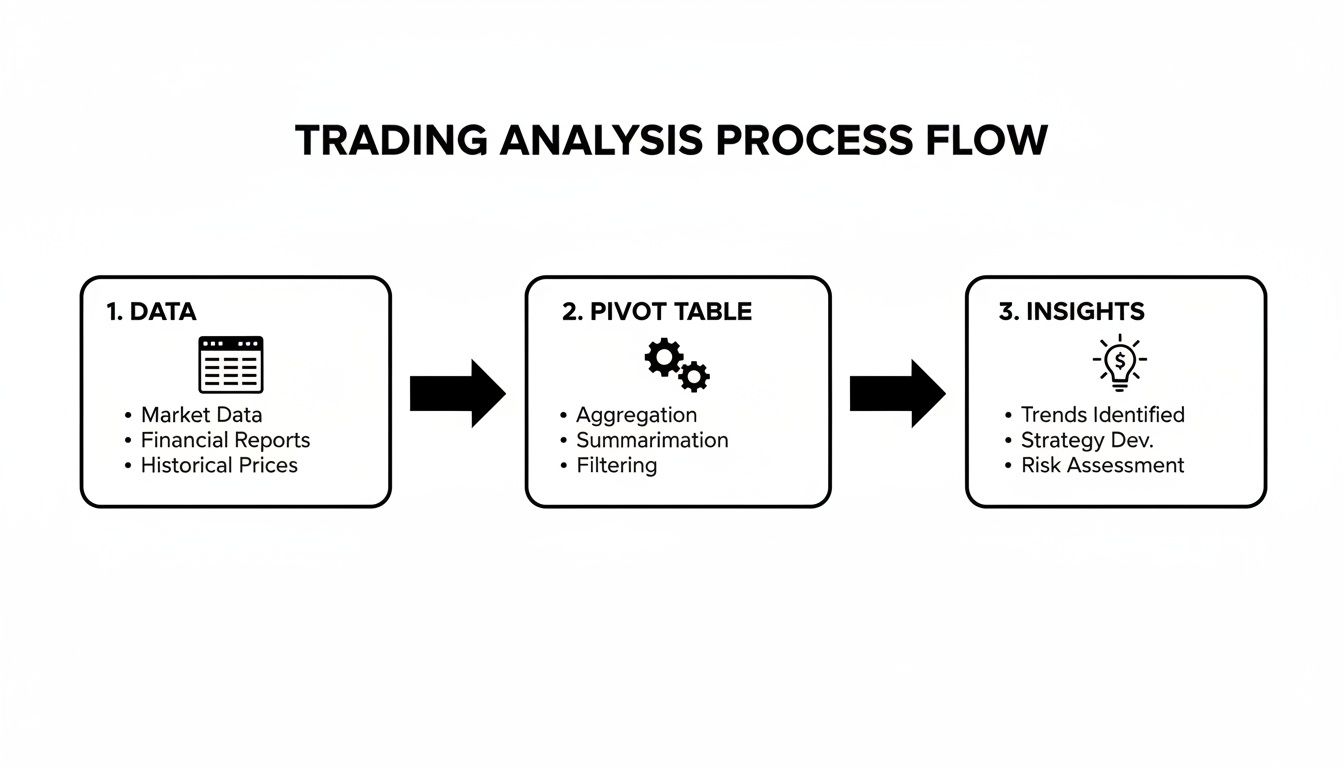
This simple workflow is the core of it all. You take your raw data, let the pivot table do the heavy lifting, and pull out insights that will sharpen your trading discipline.
Prepping and Selecting Your Data
The first, and most important, step is getting your data ready. One wrong click here can throw off your entire analysis — it’s a common mistake that trips up many traders before they even get started.
Before anything else, make sure your trading journal export is a simple, clean table. That means one header row at the top (with column titles like ‘Symbol’, ‘P&L’, ‘Strategy’, ‘Date’) and your trades listed in the rows directly below. No blank rows or columns in the middle of your data.
Once it looks good, select the entire dataset. The quickest way is to click any single cell inside your data and hit Ctrl+A (on Windows) or Cmd+A (on Mac). This ensures every last trade gets included.
Inserting Your Pivot Table
With your data highlighted, it’s time to create the pivot table. This will pop a new sheet into your workbook, giving you a dedicated playground for analysis without messing up your original trade log.
- In Excel: Head to the Insert tab on the ribbon and click PivotTable. A small box will pop up to confirm your data range. Just hit OK.
- In Google Sheets: Go to the Insert menu and choose Pivot table. It will ask if you want it on a new sheet — always say yes.
You should now see a blank pivot table on the left and a “PivotTable Fields” pane on the right (or “PivotTable editor” in Google Sheets). This pane is your command center. It might look a little empty, but this is where you’ll bring your analysis to life.
Understanding the Four Core Areas
That field list is broken down into four key areas. Figuring out what each one does is the secret to unlocking your data’s potential. We’ve all been there, dragging fields into the wrong boxes and getting a jumbled mess. Let’s clear that up from a trader’s point of view.
The real skill here isn’t just knowing how to drag and drop. It’s knowing why you’re putting a specific field into a specific area to answer a real question about your trading.
This is where you turn your questions into answers. Want to see your P&L by ticker? You’ll use the ‘Symbol’ field. Curious which of your strategies is actually making money? That’s what the ‘Strategy’ field is for.
Here’s a quick-reference table that breaks down each area and how you’d use it to analyze your journal.
Core Pivot Table Areas Explained for Traders
| Field Area | Function | Trading Journal Example |
|---|---|---|
| Rows | Groups your data vertically based on the field you add. | Drag ‘Symbol’ here to create a unique row for each ticker you traded. |
| Columns | Groups your data horizontally. | Drag ‘Trade Direction’ (Long/Short) here to see side-by-side results. |
| Values | Performs a calculation on the field you add. | Drag ‘P&L’ here to Sum the total profit or loss for each group. |
| Filters | Filters the entire report based on a specific field. | Drag ‘Date’ here to filter your entire analysis for a specific month. |
Let’s try a practical example. By dragging your ‘Symbol’ field into the Rows area and your ‘P&L’ field into the Values area, you’ve instantly built your first report.
Just like that, the pivot table sums up the P&L for every trade you took on each symbol, giving you a clean summary of your profit or loss per ticker. You just answered a fundamental performance question in about five seconds — a task that would’ve taken ages with manual formulas.
Unlocking Deeper Insights with Advanced Techniques
So, you’ve got the basics down. Now it’s time to go beyond simple summaries and turn that table into a serious diagnostic tool for your trading. Advanced techniques aren’t about making things complicated; they’re about asking sharper, more specific questions about your trading habits and getting clear answers.
Many traders get stuck at a certain level because their analysis is too shallow. They know their overall P&L, sure, but they can’t tell you the exact behaviors driving those results. By digging into a few more powerful features, you can start peeling back the layers of your performance and build the kind of discipline that leads to long-term success.
Adding Custom Metrics with Calculated Fields
Does your raw P&L data tell the whole story? Almost never. It’s easy to forget about crucial costs like commissions and fees, which can quickly turn what looks like a profitable strategy into a losing one. This is exactly where Calculated Fields come in.
A Calculated Field lets you create a new column in your pivot table by running a calculation on your existing data fields (like ‘P&L’ or ‘Commissions’). Instead of manually adding a “Net P&L” column to your source data, you can build it right into your analysis on the fly.
Here’s a practical example of how you’d create a “Net P&L” field:
- Click anywhere inside your pivot table to activate the PivotTable Analyze tab in Excel (or open the editor in Google Sheets).
- Look for Fields, Items, & Sets, and from there, select Calculated Field.
- A dialog box will pop up. Give your new field a name, like “Net P&L”.
- In the formula bar, you’ll type something simple like
= 'P&L' - 'Commissions'. You can double-click the field names from the list below to add them to your formula. - Click Add, then OK.
Just like that, a new “Net P&L” field appears in your field list. Now you can drag it into the Values area and see a true, unfiltered look at your profitability after all costs are factored in.
Finding Patterns with Data Grouping
Staring at a long list of daily P&L figures can feel like pure noise. Did you really have a good month, or was your performance just skewed by one massive week? Grouping helps you zoom out to see the bigger picture by rolling your data up into logical timeframes.
You can group your trade dates to analyze performance by:
- Months: To track your consistency and quickly spot your best and worst months.
- Quarters: Great for aligning your performance reviews with broader market cycles.
- Days of the Week: Ever wonder if you trade worse on Fridays? This will tell you.
To set this up, just right-click any date in your pivot table’s Row Labels and choose Group. A menu pops up letting you choose how to bundle the dates. This simple tweak transforms your report from a daily log into a high-level strategic overview, fostering that essential long-term perspective.
Building an Interactive Dashboard with Slicers
This is where your analysis becomes truly dynamic. Slicers are essentially interactive buttons that let you filter your entire pivot table with a single click. Forget messing with clunky filter dropdowns — this creates a clean, dashboard-like experience.
Imagine you want to compare how your “Breakout” strategy performs against your “Mean Reversion” strategy. With slicers, you can create buttons for each. Click the “Breakout” button, and your entire pivot table instantly filters to show only those trades. Click “Mean Reversion,” and it flips to show the others.
Slicers turn your static report into a responsive analysis tool. This interactivity encourages you to explore your data, helping you spot connections you might have otherwise missed.
This kind of interactivity isn’t just a novelty. The demand for dynamic, data-driven decision-making has fueled growth in the analytics software market. According to one market survey, the data analysis tools sector is projected for significant expansion. You can read more about the growth of the data analysis market here. This trend shows how professionals everywhere, especially in finance, are adopting more powerful ways to analyze data in real time.
To add a slicer in Excel, click your pivot table, head to the PivotTable Analyze tab, and hit Insert Slicer. Choose the field you want to filter by, like “Trade Direction” or “Strategy,” and you’re good to go.
For an even deeper dive into filtering, check out our complete guide on advanced pivot table filtering techniques.
Practical Reports to Build Today
Theory is one thing, but let’s build some reports that will actually make a difference in your trading. The goal here isn’t just to learn a spreadsheet trick; it’s to create analysis that gives you real, actionable insights to sharpen your edge and improve your discipline.
We’re going to walk through three powerful reports you can build right now with your own trading data. Think of these as essential check-ups that force you to be honest about your strengths and weaknesses. Confronting the raw data is the first step toward building long-term, consistent performance.

Report 1: P&L by Strategy
Every trader has their favorite setup, but is it actually your biggest moneymaker? Gut feelings are notoriously unreliable in the market. This report cuts through the bias and gives you the hard numbers, showing which strategies are consistently profitable and which might be slowly bleeding your account.
To build this, you’ll need a “Strategy” column in your trade journal. If you don’t already have one, now is the perfect time to start tagging each trade with a simple label like “Breakout,” “Mean Reversion,” or “Earnings Play.” Discipline starts with good data. If you need help getting structured, our guide to building an Excel trading journal is a great place to start.
Once your data is ready, setting up the pivot table is simple:
- Rows: Drag your ‘Strategy’ field here. This will list out each of your unique trading setups.
- Values: Drag your ‘P&L’ field into this box and make sure it’s set to Sum. It will automatically total the profit and loss for every trade under that strategy tag.
In seconds, you’ll have a clear, undeniable breakdown of your best and worst strategies. The results might surprise you and force a much-needed re-evaluation of where you’re focusing your capital and energy.
Report 2: Win Rate by Day of the Week
It’s easy to fall into a routine, trading at the same times each week without realizing how much your performance fluctuates. Are you focused on Mondays but prone to sloppy mistakes on Fridays? This report will show you. This analysis is about uncovering the hidden behavioral patterns tied to your trading week.
Here’s the setup:
- Start by dragging your ‘Trade Open Date’ field to the Rows area.
- Now, right-click on any date in the pivot table and find the Group option. A pop-up menu will appear — deselect everything except for Days.
- Next, drag your ‘P&L’ field into the Values area twice.
- For the first P&L field, leave it as Sum to see your total profit or loss for each day.
- For the second one, right-click it, go to Show Values As, and select % of Grand Total. This quickly shows which days contribute most to your bottom line.
- To get a true win rate, you’ll first need to add a helper column in your source data. Use a simple formula like
=IF(B2>0, 1, 0)(assuming P&L is in column B) to create a ‘Win’ column. After refreshing your pivot table, drag this new ‘Win’ field into the Values area and set its calculation to Average. Format it as a percentage, and you’re done.
This kind of detail helps you make disciplined adjustments, like reducing position size on your worst-performing day or being more selective with trades.
Report 3: Prepping Data for an Equity Curve
An equity curve is the ultimate visual scorecard for your trading. It’s simply a running total of your P&L over time, and its trajectory — whether it’s a smooth upward climb or a volatile rollercoaster — is one of the most honest pieces of feedback you can get.
While the pivot table itself won’t draw the chart, it’s the perfect tool for preparing the data. The goal is to create a clean, cumulative sum of your P&L, neatly ordered by date.
A pivot table’s power to instantly organize and summarize massive datasets has made it a global standard, used everywhere from personal trading journals to government agencies managing international trade statistics.
This influence is clear in how major organizations handle complex financial data. For example, Australia’s Department of Foreign Affairs and Trade (DFAT) provides its official trade statistics in a pivot table format. This allows users to interactively analyze data, proving just how robust this tool is. You can even explore how they use pivot tables for public data on DFAT’s website.
To get your equity curve data prepped:
- Drag your ‘Trade Close Date’ into the Rows area.
- Bring your ‘P&L’ into the Values area.
- Right-click the P&L column, select Show Values As, and choose Running Total In. Make sure the base field is set to your date column.
This generates a new column showing your cumulative P&L. From there, you can highlight that data, insert a line chart, and visualize your equity curve. It’s an essential report for any trader who is serious about tracking long-term progress.
Navigating Common Pivot Table Frustrations
Every powerful analysis tool has its quirks. If you’re feeling a little stuck with pivot tables, you’re not alone. Hitting roadblocks is a completely normal part of learning to master your trade analysis.
Frankly, developing the discipline to push through these snags is what separates consistently profitable traders from the rest. Think of these frustrations not as failures, but as learning opportunities. Tackling them head-on builds the persistence you need for accurate analysis — a non-negotiable skill for long-term success.
Why Is My Pivot Table Not Updating?
This is, without a doubt, the most common frustration. You’ve just logged a full day of new trades in your journal, you flip back to your pivot table, and… nothing. It’s still showing yesterday’s P&L. It’s a moment that can make you wonder if the whole thing is broken.
Here’s the key insight: pivot tables are not live dashboards. They don’t automatically sync when you change your source data. You have to tell them to update.
The fix is simple. Just right-click anywhere inside your pivot table and select Refresh. That’s it. The table will instantly pull in all the new data and recalculate everything. Make this a habit, and you’ll always have an up-to-date view of your performance.
When Numbers Don’t Behave Like Numbers
Another classic problem: your calculations look completely off. Maybe your total P&L is showing up as zero, or instead of a dollar amount, you just see a ‘Count’ of your profits. This almost always points back to a data formatting issue in your source spreadsheet.
Spreadsheet programs can get confused, especially with data exported from a trading platform. The most common culprit is a number being accidentally stored as text instead of a number.
Here’s how to spot and fix it:
- In Excel, look for the little green triangles in the corner of your cells. That’s a clear sign that a number is being treated as text.
- Check the alignment. Text naturally aligns to the left, while numbers align to the right. If your P&L column is hugging the left side, that’s a red flag.
- To fix this, highlight the whole column, click the small warning icon that pops up, and choose “Convert to Number.”
Getting your data clean before you even start building a pivot table will save you from a world of headaches. A few minutes spent on proper formatting prevents hours of confusion down the road. This is part of the discipline of data analysis.
Misinterpreting Your Results
The final hurdle is often the most subtle — making sure the numbers on your screen actually mean what you think they mean. A pivot table will calculate whatever you tell it to, but it’s on you to ensure that calculation is actually useful.
The most frequent mistake here is using the wrong summary function in the Values area. For example, if you drag your ‘P&L’ field into the Values box, your spreadsheet might default to COUNT instead of SUM. You’ll see the number of trades you took, not the total profit you made from them.
Always double-check the calculation. In the “PivotTable Fields” pane, just click on the field in the Values area and select “Value Field Settings.” From there, you can explicitly choose Sum, Average, Max, or whatever function actually answers the question you’re asking. Building the discipline to verify these small details is what turns raw data into trustworthy insights.
Common Questions About Pivot Table Analysis
As you start working pivot tables into your trading analysis, you’re going to have questions. That’s a great sign — it means you’re really digging in and trying to get the most out of your trade data.
Let’s walk through some of the most common things traders ask when they’re first getting started. These are the quick fixes and bits of know-how that will help you sidestep the usual hurdles and analyze your journal with confidence.
How Do I Handle New Trades Added to My Journal?
This is easily the #1 question. You just logged a new set of trades, but your P&L report is stuck in the past. The most important thing to remember is that pivot tables don’t update automatically.
You have to tell them to look at your source data again. The fix is simple: just right-click anywhere inside your pivot table and hit Refresh. Get into the habit of doing this every time you add new trades, and your analysis will always be up-to-date.
What Is the Difference Between a Pivot Table and a Filter?
Think of a standard filter as a way to hide things you don’t need to see right now. You could, for instance, filter your trade log to show only trades in the ticker ‘AAPL’. But a filter just shows and hides rows; it doesn’t actually calculate anything with the data that’s left.
A pivot table, on the other hand, is built for summarization. It doesn’t just show you all your ‘AAPL’ trades; it groups them together and calculates a result, like your total P&L or average win rate on that one ticker. This ability to aggregate data on the fly is what makes pivot tables so powerful for analysis.
The real magic of a pivot table isn’t just in organizing your data, but in its ability to instantly summarize it. It’s the difference between looking at a list of trades and understanding the story that list is telling you.
Can I Create Charts from My Pivot Table?
Absolutely — and you definitely should. Visualizing your data is the next logical step in making it truly useful. A chart can expose trends and patterns that are almost impossible to spot when you’re just staring at a grid of numbers.
Both Excel and Google Sheets have a fantastic feature called Pivot Charts. These aren’t just regular charts; they’re directly linked to your pivot table. When you use a slicer to filter by a specific strategy, for example, the chart updates in real-time. It’s the perfect way to build dynamic, interactive dashboards to track your performance.
Can I Connect My Pivot Table Directly to My Broker?
While you can’t create a live, streaming connection from your broker directly into a pivot table, you can streamline your workflow. Many traders set up simple scripts or use their platform’s tools to automatically export trade history into a CSV or spreadsheet file.
Once that file is the data source for your pivot table, your entire analysis process becomes just two steps: export the latest data from your broker, then refresh the pivot table. Building this little bit of discipline removes tedious manual data entry and ensures your analysis is always based on a complete, accurate record of your trades.
Ready to stop guessing and start analyzing? TradeReview provides the tools you need to build a data-driven edge. Log your trades, sync with your broker, and use our performance analytics to track your win rate, profit factor, and equity curve. Get started for free and turn your trade history into actionable insights.